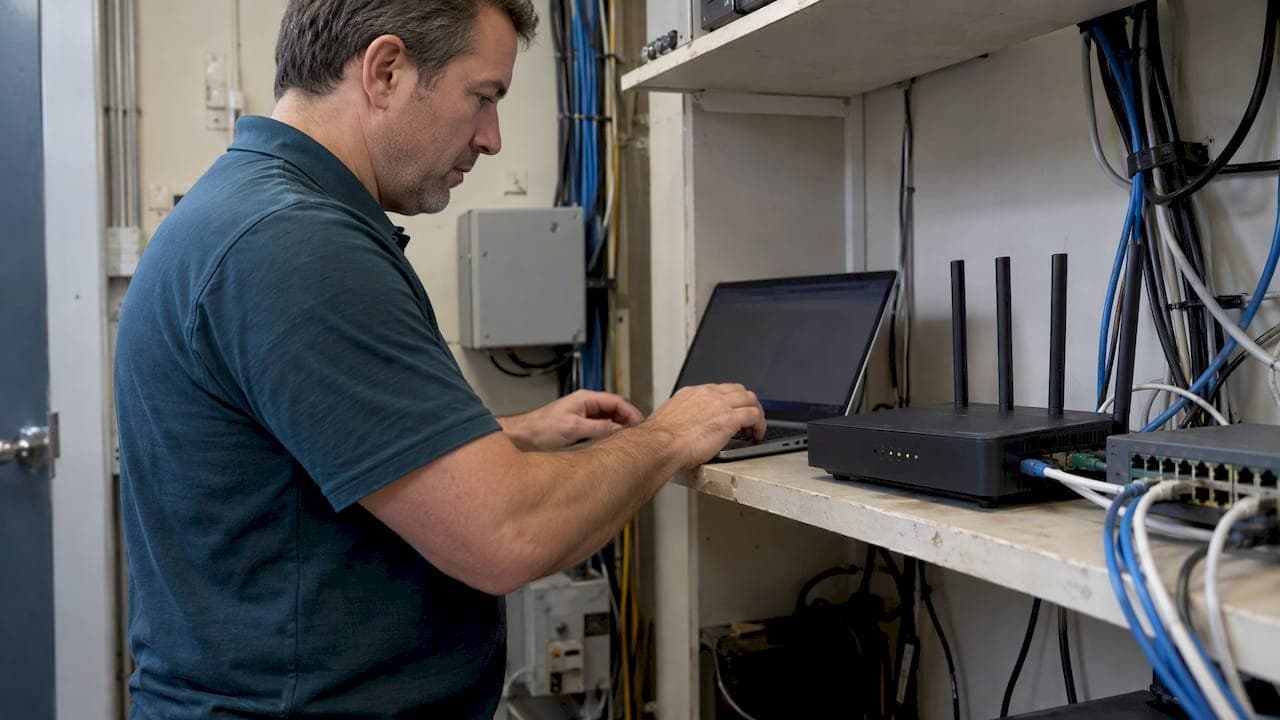
For modern SIP-based VoIP, disable SIP ALG on the router, save the setting, and reboot, then run the verification steps below. SIP ALG was built to help old NAT setups handle SIP traffic, but with current VoIP equipment it usually rewrites packet headers in ways that break call quality. Turn it off, restart your router and phones, and test before assuming the problem is somewhere else.
TL;DR:
- Router menus may label the control SIP ALG, SIP Passthrough, SIP Helper, or SIP Transformations; check NAT, firewall, or WAN settings, including ISP gateways.
- After saving the change, reboot the router and every desk phone or softphone, then test inbound and outbound calls, transfers, hold, and voicemail.
- If symptoms persist, check for an ISP gateway or double NAT, and collect SIP traces and registration logs before contacting your provider.
- Use firewall rules limited to your provider’s IP ranges and signaling ports; larger offices can use an SBC for NAT traversal and security.
- Older or nonstandard SIP setups behind strict NAT may benefit from keeping SIP ALG enabled, although this is uncommon with current VoIP systems.
Table of Contents
- Quick steps to find and turn off SIP ALG
- Disabling SIP ALG on TP‑Link routers
- Disabling SIP ALG on Netgear, Asus, and D‑Link routers
- Disabling SIP ALG on Ubiquiti, EdgeRouter, MikroTik, and enterprise firewalls
- Verify the fix: reboot and run a test call checklist
- Security practices to follow after disabling SIP ALG
- How we verify SIP ALG changes during on-site installs
- Why disabling SIP ALG is usually the first fix we try
- Let us handle the SIP ALG configuration and testing for you
- FAQ
- Sources
Quick steps to find and turn off SIP ALG
Most routers hide this setting under NAT or firewall menus, and the label varies by vendor, so check for any of these names: SIP ALG, SIP Passthrough, SIP Helper, or SIP Transformations. Vendor and community documentation lists these as the common terms used across consumer and business routers, according to firewall requirement guides.
- Log into your router's admin interface, typically at a local IP like 192.168.1.1 or 192.168.0.1, or through the vendor's mobile app.
- Navigate to Advanced Settings, then look under NAT, Firewall, or WAN sections for an ALG or SIP-related toggle.
- Disable the setting, save the configuration, and reboot the router.
- If you cannot find the option, check whether your ISP-provided gateway has its own ALG enabled upstream, since double-NAT setups often hide a second instance of the problem.
Some business-grade devices require CLI access instead of a GUI toggle. Use the GUI when it is available since it is faster and leaves a clear audit trail; drop to CLI only when the GUI lacks the control you need.
Disabling SIP ALG on TP‑Link routers
TP‑Link documents SIP ALG controls across its router and mesh lineups, with slightly different paths depending on the hardware.
- Web GUI (most Archer and xDSL models): go to Advanced, then NAT Forwarding, then ALG, and disable SIP ALG, as TP‑Link's support article outlines.
- Deco App: tap More, then Advanced, then NAT Forwarding, then SIP ALG, and switch it off.
- Older TP‑Link firmware without a GUI toggle: connect via telnet and run
ip nat service sip sw off. - Save the change and reboot the device; Deco mesh units in particular may lack granular IP restrictions on forwarded ports, so use Device Isolation or an upstream firewall if you rely on port forwarding for SIP trunks.
Pro Tip: Screenshot the ALG setting before and after the change so you have a record if the ISP or VoIP provider asks for proof during a support call.
Disabling SIP ALG on Netgear, Asus, and D‑Link routers
These three vendors place the setting in different menus, but the end result is the same: a single toggle that stops the router from inspecting and rewriting SIP packets.
- Netgear (Genie interface): go to Advanced, then Setup, then WAN Setup, and select Disable SIP ALG, then save and reboot, per Netgear's own knowledge base.
- Asus: open Advanced Settings, then WAN, then NAT Passthrough, and set SIP Passthrough to Disable.
- D‑Link: under Advanced, find Application Level Gateway (ALG) settings and clear the SIP checkbox, then save.
All three require a reboot to apply cleanly. Skipping the reboot is one of the most common reasons admins think the fix did not work when it actually did.
Disabling SIP ALG on Ubiquiti, EdgeRouter, MikroTik, and enterprise firewalls
Enterprise and prosumer gear typically exposes SIP handling through the firewall or conntrack subsystem rather than a single labeled toggle, so the commands look different from consumer routers.
- EdgeRouter or ER-X: in the Config Tree, disable the SIP conntrack module, or run
set system conntrack modules sip disablefrom the CLI, and adjust UDP timeout values if calls still drop after idle periods. - MikroTik: in Winbox, go to IP, then Firewall, then Service Ports, and disable SIP, or run
/ip firewall service-port disable sipfrom the terminal. - FortiGate or SonicWall: disable SIP transformations or VoIP inspection in the security profile; on FortiGate specifically, disabling SDP translation alone can resolve one-way audio without removing SIP inspection entirely, as Fortinet's community documentation explains.
After any of these changes, re-check your NAT configuration, since conntrack and firewall rules can interact in ways a simple toggle does not.
Pro Tip: On Cisco IOS gear, clearing NAT translations is not enough on its own: you may need to explicitly clear SIP-related conntrack entries for the change to take full effect.
Verify the fix: reboot and run a test call checklist
Disabling SIP ALG only takes effect once cached sessions are cleared, so a full reboot of the router, desk phones, and softphones is necessary before testing, according to Ring‑U's documentation.
- Power-cycle the router first, then reboot every desk phone and softphone on the network.
- Place an outbound call, then an inbound call, then an internal transfer, then test hold and resume.
- Check voicemail delivery and repeat the test across any codecs your provider supports.
- If problems persist, collect SIP traces and device registration logs before escalating to your VoIP provider or ISP.
One-way audio, dropped calls, and failed transfers are the clearest signs SIP ALG is still interfering, and these are the same symptoms VoIPdocs lists as classic double-NAT or ALG problems. If calls connect cleanly in both directions and transfers hold, the fix worked. If audio still drops, the issue may sit upstream at the ISP gateway.
Security practices to follow after disabling SIP ALG
Turning off SIP ALG removes a layer of automatic packet rewriting, so it helps to replace it with explicit controls rather than leaving the network wide open.
- Restrict SIP port forwarding to your VoIP provider's known IP ranges instead of leaving ports open to any source.
- Set firewall rules that match your provider's signaling and media ports precisely, rather than relying on broad NAT rules.
- Adjust UDP timeout values so established SIP sessions do not get dropped during normal silence periods on a call.
- For multi-site or larger offices, consider a session border controller (SBC) to handle NAT traversal and security instead of router-level ALG.
Pro Tip: Small offices usually only need firewall IP restrictions and a reboot schedule, but multi-site businesses benefit from a dedicated SBC that centralizes SIP security across locations.
Community and vendor discussions consistently point to firewall rules or an SBC as the safer long-term replacement for ALG, as TP‑Link's own community forum notes.
How we verify SIP ALG changes during on-site installs
When we install a phone system on-site, we run pre-change network checks before touching any router setting, then disable SIP ALG, confirm VLAN and QoS configuration, and run the same test call checklist outlined above before leaving the site, with detailed steps on call forwarding behavior. For readers who want the fuller router settings checklist, see our guide to router settings that break VoIP, and for VLAN setup specifically, our VoIP VLAN configuration guide covers the steps in detail.

Why disabling SIP ALG is usually the first fix we try
In the field, SIP ALG problems tend to surface after a firmware update, an ISP swaps out a gateway, or someone introduces a double-NAT setup without realizing it. A system can run fine for months and then break the moment one of these changes happens upstream, which is why checking ALG settings early saves time during troubleshooting. Disabling it is low risk when paired with firewall IP restrictions and a proper test call checklist.
— James
Let us handle the SIP ALG configuration and testing for you
Hunting through router menus and testing call flows takes time away from running your business, and getting it wrong means dropped calls with customers. We handle the entire setup on-site: network checks, SIP ALG configuration, VLAN and QoS tuning, and full test calls across inbound, outbound, and transfer scenarios before we consider the job done.
For related security hardening after the ALG change, our guide on VoIP security controls covers port restrictions and encryption options worth pairing with this fix. If you run a multi-site operation, our multi-site and remote office VoIP page outlines how we handle verification across locations. Ready to get your phone system installed and configured correctly the first time? Visit our Ontario business phone systems page to request a site visit.
FAQ
What does disabling SIP ALG do?
Disabling SIP ALG stops the router from inspecting and rewriting SIP packet headers as they pass through NAT. This prevents the router from introducing errors into call setup and media negotiation, which is the root cause of many VoIP connectivity problems.
Should I disable SIP ALG for gaming?
SIP ALG specifically affects SIP-based voice traffic, not gaming protocols, so disabling it has no direct effect on gaming performance. If your router has a separate gaming or application-specific ALG, that setting is unrelated to SIP ALG and should be evaluated on its own.
Is disabling SIP bad?
Disabling SIP ALG is not harmful for most modern VoIP setups and is the recommended fix for symptoms like one-way audio and dropped calls, as troubleshooting guides note. Pairing the change with firewall IP restrictions keeps your network secure without relying on ALG.
Should I enable SIP ALG on my router?
For most current VoIP phones and SIP trunks, SIP ALG should stay disabled rather than enabled. Some older or non-standard SIP implementations behind strict NAT may benefit from it, but those cases are the exception rather than the rule.
Sources
- How to Disable SIP ALG on TP‑Link xDSL modem router — TP‑Link Support
- How do I disable SIP ALG on my NETGEAR device using the router web interface? — NETGEAR Support
- Signs of SIP ALG or double NAT — VoIPdocs
- Disable SIP ALG — Ring‑U wiki
- Troubleshooting tip: one-way audio issue in VoIP (with SIP ALG) — Fortinet Community