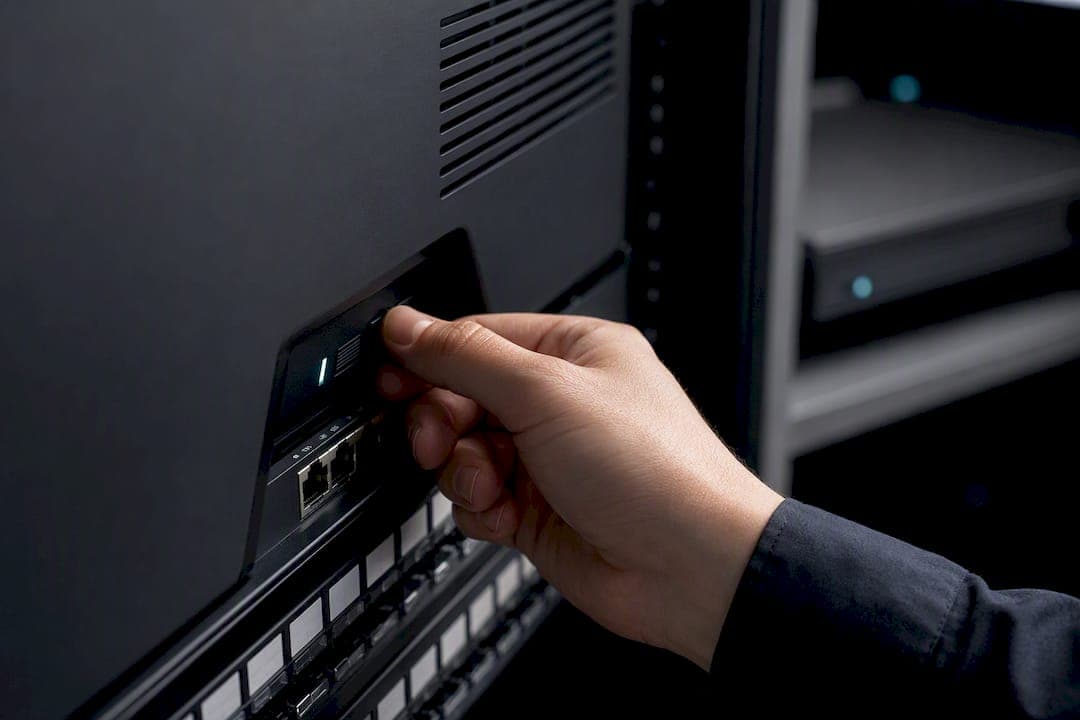
Four settings cause almost every VoIP call problem: SIP ALG left enabled, no QoS prioritizing voice traffic, wrong or blocked SIP/RTP ports, and phones losing their IP address after a reboot. Fix those four, then reboot the router and force every phone to re-register before you test a single call. Skip the re-register step and the old, broken connection state just lingers.
TL;DR:
- Disabling SIP ALG is crucial, but many routers lack a toggle; in such cases, placing the ISP gateway into bridge mode or using a dedicated VoIP router is necessary.
- Setting QoS to prioritize RTP and SIP traffic ensures consistent call quality, especially during network congestion, with device or MAC-based prioritization being most reliable.
- Static IP reservations and port forwarding for SIP and RTP ranges prevent call drops and one-way audio, provided the exact port ranges are confirmed with the provider.
- Raising UDP session timeouts to 120–300 seconds helps maintain registration stability, especially after network reboots or configuration changes.
- Reboot the router and force all phones to re-register after making configuration adjustments to clear stale sessions and prevent lingering broken connections.
Table of Contents
- What Should I Change First in My Router Settings for VoIP?
- Enable and Tune QoS for Reliable Voice
- Disable SIP ALG (and What to Do When You Can't)
- NAT, Port Forwarding, and UDP Timeouts to Check
- Voice VLAN and IP Reservations That Keep QoS Working
- How Do I Troubleshoot Call Quality After Making Changes?
- When the Gateway Hides the Controls: Bridge Mode, VoIP Router, or SBC
- What IT Pros Get Wrong About VoIP Router Setup
- A Hands-Off Option: Professional On-Site Install and Configuration
- Sources
- FAQ
What Should I Change First in My Router Settings for VoIP?
Work through these in order. Most VoIP problems clear up somewhere in the first six steps.
- Back up your current router configuration before touching anything, so you can roll back fast if something breaks.
- Enable QoS and set RTP/SIP traffic (or your phones' MAC/IP addresses) to the highest priority queue.
- Disable SIP ALG. Look for it under Advanced > Firewall, NAT, or a dedicated "VoIP" or "Application Layer Gateway" menu, depending on your brand.
- Reserve static IPs for every phone via DHCP reservation, so port forwards and QoS rules keep working after a power cycle.
- Set port forwards or static/outbound NAT for the SIP and RTP ranges your provider gives you.
- Raise the UDP/session timeout to 120 to 300 seconds if your router's default is shorter.
- Reboot the router, then force every handset to re-register.
- Test calls: an outbound call, an inbound call, a transfer, and a hold.
If step 3 has no visible toggle, or calls still misbehave after all seven steps, that's your cue to stop guessing and call your VoIP provider or installer with your router model in hand.
Enable and Tune QoS for Reliable Voice
Quality of Service is the single control that most affects call quality once ports and ALG are sorted out, because it decides which packets get dropped first when your internet connection gets busy. Voice packets (RTP) need top priority; SIP signaling comes second, since a delayed SIP packet just slows call setup, while a delayed RTP packet you actually hear as a gap or a click.
Routers implement QoS three different ways:
- Device or IP/MAC-based QoS assigns priority to a specific phone's address, which is the most reliable method on home and small-office routers.
- Port-based QoS prioritizes traffic on SIP/RTP port ranges, useful when you can't pin priority to a device.
- Application-aware QoS (sometimes labeled "VoIP" or "Gaming/Voice" in consumer firmware) auto-detects SIP traffic, but it's the least predictable option and worth verifying with a real call test.
Pro Tip: If your router only offers one QoS mode, pick device/MAC-based priority for the phones themselves rather than trying to match every possible SIP port your provider might use.
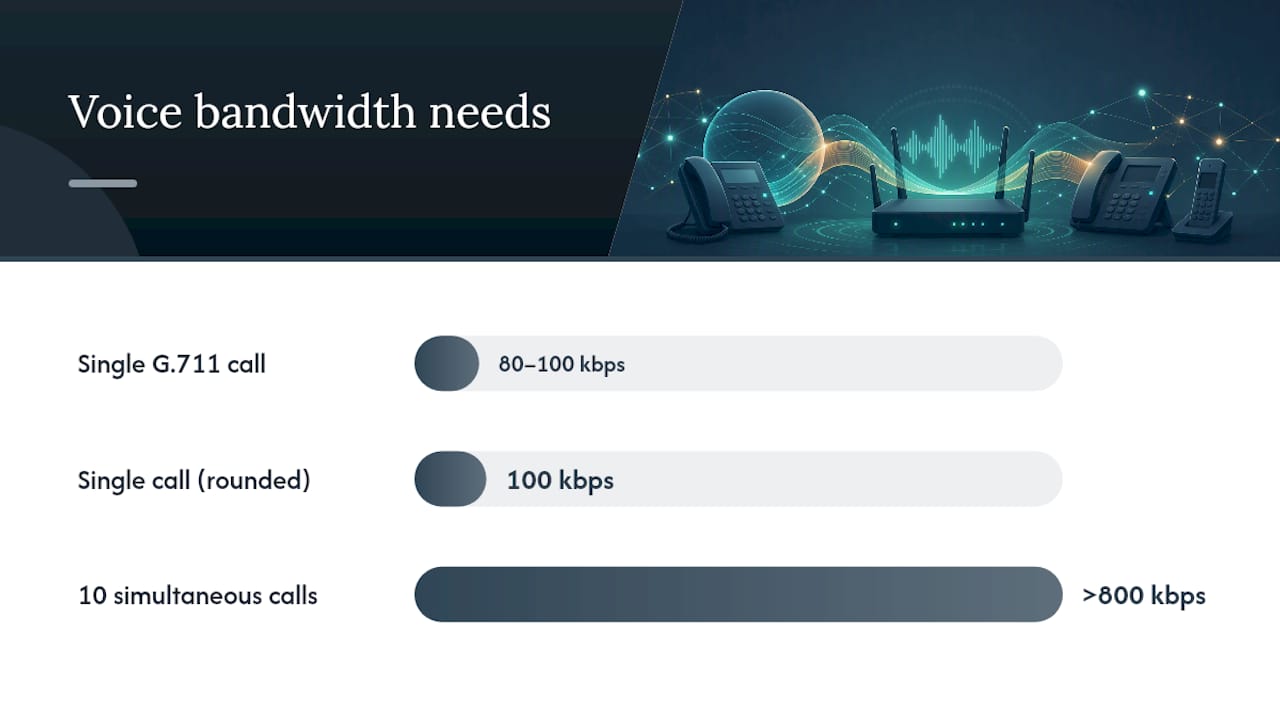
For bandwidth, SpectrumVoIP's guidance puts each active G.711 call at roughly 80 to 100 kbps, and recommends rounding up to cover signaling overhead. Ten simultaneous calls, then, need a reserved chunk of bandwidth well north of 800 kbps just for voice, before any web browsing or file transfers touch the same connection.
To validate the setup, start two or three concurrent test calls, then generate heavy background load (a large file upload works well) and listen for jitter or dropped words. If quality degrades under load, your QoS reservation isn't holding. For the exact math behind sizing a voice reservation, BusinessVoip.ca's breakdown of bandwidth needs for 10 concurrent G.711 calls walks through the calculation in detail.
Disable SIP ALG (and What to Do When You Can't)
SIP ALG stands for Application Layer Gateway, a router feature meant to help NAT traversal for SIP traffic. In practice, it usually does the opposite: OnSIP's support documentation notes that many routers rewrite SIP headers incorrectly, which breaks modern cloud PBX and SIP endpoint connections rather than helping them. It's enabled by default on most consumer and commercial routers straight out of the box.
Look for the toggle under these common names, depending on your vendor:
- Netgear: Advanced > Setup > WAN Setup > "Disable SIP ALG" checkbox, per Netgear's own knowledge base.
- TP-Link: Advanced > NAT Forwarding, or sometimes buried in Firewall settings as "SIP ALG."
- SonicWall: VoIP tab, listed as "Enable Consistent NAT" and SIP transformations, which you'll want turned off for most SIP trunks.
- Cisco/ASA: the
sipinspection map under Modular Policy Framework, disabled with ano inspect sipcommand rather than a checkbox.
After disabling it, save the change, reboot the router, and force every phone to re-register rather than waiting for it to happen on its own.
Pro Tip: Test a call transfer and a hold specifically, not just a basic call. SIP ALG problems often show up only during those actions, not during a simple point-to-point call.
If your router genuinely has no SIP ALG toggle, don't reach for low-level conntrack or NOTRACK firewall hacks. Put the gateway into bridge mode and let a router you control handle NAT, ask your ISP to disable ALG on their end, or place a small session border controller or VoIP-ready router in front of your phones.
NAT, Port Forwarding, and UDP Timeouts to Check
Your provider will give you exact SIP and RTP port ranges, but the common defaults look like this:
- SIP signaling: UDP or TCP 5060 to 5062, depending on the provider.
- RTP media: a UDP range, typically somewhere between 10000 and 20000, though this varies by carrier.
- Confirm the exact ranges with your provider before forwarding anything. Guessing here causes more one-way audio problems than almost anything else.
Static port and manual (or hybrid) outbound NAT matter as much as the forwards themselves. On firewalls like pfSense, there's often no SIP ALG to disable at all; the fix instead is enabling Static Port under Outbound NAT for the voice subnet, which keeps the source port stable so the far end can find its way back.
UDP session timeouts also trip up registrations more than people expect. A short default timeout, sometimes just 30 seconds, expires the NAT mapping before the phone's next keep-alive arrives. Raising it to 120 to 300 seconds gives registrations room to breathe. Look for this under Firewall > Session Timeouts, NAT settings, or sometimes a generic "Connection Timeout" field.
For firewall rules generally, favor specific, provider-scoped allow rules over broad exposure. Putting a phone or ATA in the DMZ can diagnose a stubborn issue fast, but leaving it there permanently hands a device direct internet exposure with no firewall at all.
Voice VLAN and IP Reservations That Keep QoS Working
A dedicated voice VLAN separates phone traffic from data traffic, which simplifies QoS rules (you're now prioritizing a VLAN, not hunting for individual devices) and adds a real security boundary between phones and the rest of your network.
Managed switches can assign the voice VLAN automatically through LLDP-MED or DHCP Option 132, so a phone gets tagged correctly the moment it's plugged in, no manual configuration per device. Where that's not available, DHCP reservation tied to each phone's MAC address is the next best thing. Static IPs work too, but reservations are easier to document and survive phone swaps without reconfiguring the switch. Either way, keep a written record of which reservation belongs to which desk or extension.
Lock down management access to the voice VLAN itself. Only your admin VLAN should be able to reach the phones' configuration interfaces. For the full switch and DHCP configuration walkthrough, BusinessVoip.ca's guide to setting up a clean VoIP VLAN covers the LLDP-MED and Option 132 setup step by step.
How Do I Troubleshoot Call Quality After Making Changes?
- Reboot the router, then force every phone to re-register rather than waiting. Connection tracking caches mangled SIP headers, and that stale state persists until sessions reset.
- Run a test sequence: one external call, one transfer, one hold, then two or three concurrent calls, and if possible, one test from a remote network to catch NAT issues invisible from inside your own office.
- Match symptoms to causes: one-way audio usually points to ALG or blocked RTP ports; registration drops point to short UDP timeouts or leftover ALG interference; distorted or choppy audio points to insufficient QoS or bandwidth; ghost or unexpected inbound calls point to an exposed SIP port.
- Capture logs before calling for support: SIP registration traces, RTP statistics (jitter and packet loss), and your router's firewall log around the time of the failed call.
Pro Tip: Save your test call recordings or timestamps. When you escalate to your provider, "call dropped at 2:14 PM after a hold" gets resolved faster than "sometimes calls break."
When the Gateway Hides the Controls: Bridge Mode, VoIP Router, or SBC
Some ISP gateways simply don't expose a SIP ALG toggle, full stop. Bridge mode is the standard fix: it turns the ISP box into a dumb modem and hands routing duties to a device you actually control, which also means you now own DHCP, QoS, and firewall rules yourself.
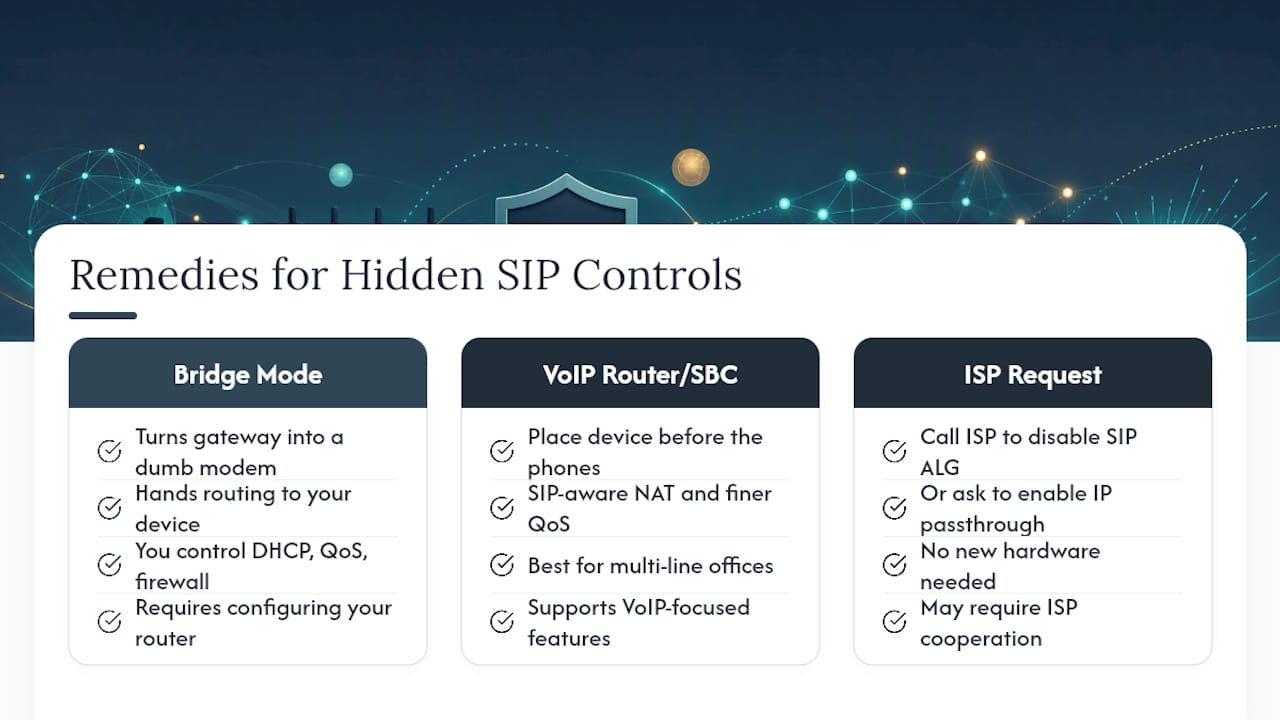
A dedicated VoIP-ready router or a small session border controller in front of your phones is the other route, particularly useful for multi-line offices where reliable SIP-aware NAT and finer QoS control matter more than saving on hardware; for small businesses needing fax integration over VoIP, services like Best Small Business Fax Service: Pay-Per-Page can complement your VoIP setup efficiently. If neither is practical, call your ISP directly and ask them to disable ALG or enable IP passthrough on their end. For offices that would rather have this configured and tested once by someone who does it daily, that's exactly the kind of on-site work BusinessVoip.ca handles as part of a managed install.
What IT Pros Get Wrong About VoIP Router Setup
The mistake I see most often isn't a wrong setting. It's assuming a saved change took effect without a full reboot and forced re-registration. The second most common one: leaving a phone in the DMZ after troubleshooting instead of treating it as a five-minute diagnostic step. Keep one labeled lab phone on hand to test any network change before you touch production lines.
— James
A Hands-Off Option: Professional On-Site Install and Configuration
Every setting covered above, QoS tuning, SIP ALG, port forwarding, VLAN tagging, can be configured and tested on-site before handing you the phones. Unlike a shipped box you configure yourself, a professional team can design the network, cable the phones, set up the voice VLAN and QoS rules, provision every handset, and run the call tests, so you never touch a router menu at all.
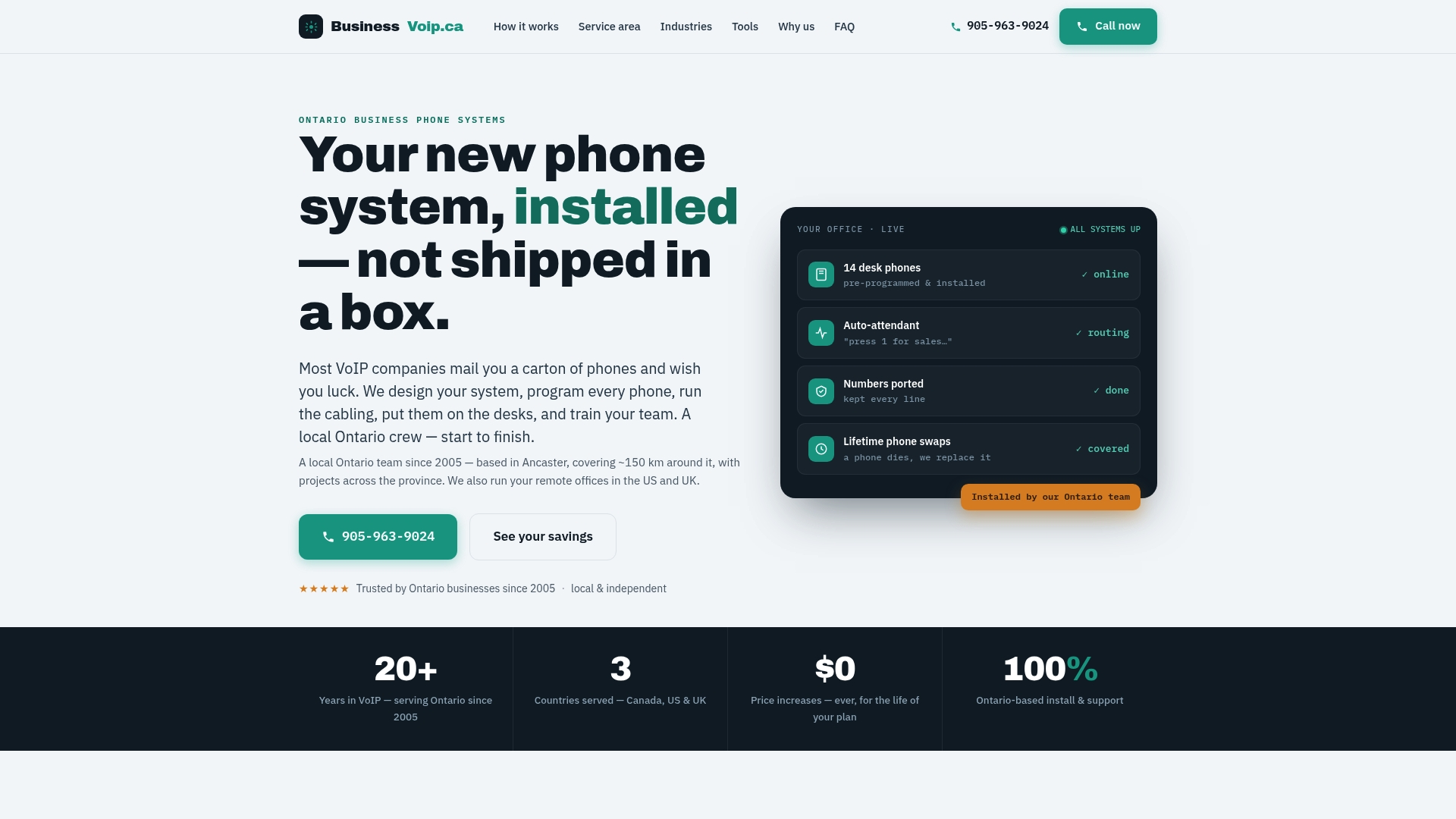
That matters most for offices without dedicated network staff and for multi-site rollouts, where getting SIP ALG and QoS wrong on even one location means a support call you didn't budget for. Fixed pricing means no surprise increases later, and rented phones often carry a lifetime warranty. If your office fits that description, or you run a multi-site or remote operation that needs consistent configuration across locations, get a quote through Businessvoip's Ontario business phone systems page and have the network checked before installation day.
Sources
For model-specific menu paths, check Netgear's SIP ALG guide and the general router settings checklist for VoIP calls for QoS and NAT specifics beyond what's covered here.
- SIP ALG Recommendations – OnSIP Support
- How do I disable SIP ALG on my NETGEAR device using the router web interface
- Recommended Router and Firewall Settings - SpectrumVoIP
FAQ
How do I configure my router for VoIP?
Enable QoS prioritizing RTP and SIP traffic, disable SIP ALG, forward or allow your provider's SIP and RTP port ranges, reserve static IPs for phones, and reboot with a forced re-registration afterward.
How do I connect a VoIP phone to a router?
Plug the phone into a LAN port (or a VLAN-tagged switch port for voice), let it pull an IP via DHCP or a reservation, and confirm it registers with your provider's SIP server before making a test call.
How do I turn off SIP ALG on my router?
Look under Advanced, Firewall, NAT, or a dedicated VoIP menu for a "SIP ALG" or "SIP Transformations" checkbox, disable it, save, reboot the router, and force your phones to re-register.
How do I enable VoIP on my network?
Confirm your provider's SIP and RTP port ranges, open or forward those ports, disable SIP ALG, apply QoS to prioritize voice traffic, and reserve IPs for each phone so the configuration holds after a restart.
What if my router has no SIP ALG toggle at all?
Put the ISP gateway into bridge mode and route through your own device, ask your ISP to disable ALG on their end, or place a VoIP-ready router or small session border controller in front of your phones.