
Remote extensions let your VoIP system ring an employee's mobile, desktop app, or a branch desk phone as a fully featured business extension, complete with business caller ID, presence, and centralized management. Yes, Ontario businesses can absolutely use them for remote employees and branch phones. Single-user setups are straightforward; multi-site deployments add network and E911 considerations worth planning for.
Three things to do before you go further:
- Confirm your internet connection meets latency, jitter, and packet loss targets, and that your router supports QoS.
- Verify how E911 calls will be handled for each remote location.
- Decide whether your team will self-provision or use Businessvoip's on-site installation service.
Key Takeaways
A remote extension is a fully featured business phone extension routed over a VoIP trunk, not a forwarded call, and deploying one reliably requires network validation, E911 registration, and a tested cutover plan.
| Point | Details |
|---|---|
| Network targets matter | Keep latency under 150 ms, jitter under 30 ms, and packet loss under 1% for reliable call quality. |
| E911 is mandatory | Every remote extension in the US must have a dispatchable location registered with the provider before going live. |
| Disable SIP ALG first | SIP ALG rewrites headers and causes one-way audio; disabling it resolves the most common remote extension failure. |
| Porting takes time | Standard number ports take 5–10 business days; submit LOAs early and keep forwarding active during the window. |
| Businessvoip installs on-site | For multi-site or mission-critical deployments, Businessvoip's Ontario team handles design, cabling, porting, and cutover with a lifetime warranty on rented phones. |
Table of Contents
- How do remote extensions actually route calls?
- When should you use a remote extension versus call forwarding?
- Step-by-step remote extension configuration
- What are the compatibility limits and carrier restrictions?
- Security, NAT traversal, and QoS checklist
- How do you diagnose and fix common remote extension failures?
- What does remote extension installation actually cost?
- When a supported install is worth every dollar
- Businessvoip installs your remote extensions on-site
- Sources
How do remote extensions actually route calls?
A remote extension works because the PBX treats the user as the endpoint, not the physical wall jack. When a call arrives, the system routes it through an auto attendant or ring group, selects a trunk, and dials the external number tied to that extension, whether that's a cell phone, a home office desk phone, or a branch office line. The FortiVoice remote extension cookbook documents this exact flow: the PBX picks a trunk and dials out to the registered external number.
For SIP-registered softphones and desk phones connecting over the internet, the system relies on NAT traversal protocols. STUN helps the endpoint discover its public IP; ICE negotiates the best path; TURN relays media when direct paths are blocked. Signaling travels over TLS; media over SRTP. Without these, you get one-way audio or failed registrations on restrictive networks.
Presence follows the user across all devices. A rep logged into the mobile app and a desk phone simultaneously shows one presence state, and transfers or holds work identically on both. Cloud phone features for remote teams confirm that mobile apps must offer full feature parity with desk phones, including transfer, hold, conference, and voicemail playback, or you create a two-tier experience for your staff.
The key insight: a remote extension is not a forwarded call. The system dials out on a trunk, so the call carries your business caller ID, logs in your call records, and participates in ring groups, queues, and transfers exactly like an on-site phone.
For initial testing, run staged auto attendant test calls from an external number before any cutover. Confirm trunk dial patterns resolve correctly and that the remote endpoint rings with the expected caller ID.
When should you use a remote extension versus call forwarding?
Use a remote extension when you need presence, full feature parity, CRM integrations, or consistent business caller ID. Call forwarding and BYOD softphones are simpler to set up but lack those capabilities.
Here is the practical breakdown:
- Presence and status: Remote extensions sync across all devices. Call forwarding shows nothing in your admin portal.
- Transfer behavior: A remote extension can blind or attended transfer. A forwarded call cannot be transferred back into the system cleanly.
- Reporting: Remote extensions appear in call logs, queue stats, and analytics. Forwarded calls often drop out of reporting.
- Caller ID: Remote extensions dial out on your business trunk. Forwarded calls may expose the employee's personal number.
- Emergency calling: Remote extensions require a registered E911 address per location. Forwarding bypasses this entirely, which is a compliance gap.
- Cost: Forwarding is often included free; remote extensions carry a per-seat fee, typically in the $24–$45/month range before add-ons.
Pro Tip: Use a remote extension for any role that handles customers, regulated data, or needs to transfer calls. Reserve simple forwarding for temporary coverage or low-risk situations where presence and reporting don't matter.
Step-by-step remote extension configuration
Follow this checklist to provision, validate, and cut over remote extensions without surprises.
- Export your DID inventory. List every phone number, confirm which are being ported, and collect Letters of Authorization. Standard ports take 5–10 business days, so submit LOAs early. Keep existing forwarding active during the port window.
- Map users to extension types. Decide who gets a softphone app, a provisioned desk phone, or a mobile app extension. Inventory any analog dependencies — fax lines, alarm panels, elevator phones — before touching the trunk configuration. A phone extension setup guide covers numbering schemes and device mapping in detail.
- Create user accounts and extensions. Assign each user a DID or shared number, configure outbound caller ID on the trunk, and set the correct auto attendant menu entries. Enable TLS for signaling and SRTP for media on every extension.
- Provision devices. Install the softphone app with SSO and MFA enforced. For desk phones, use auto-provisioning or a provisioning server URL. For mobile apps, push configuration via MDM. Label each device with its expected extension number.
- Run the testing checklist. Inbound call to DID, outbound call with caller ID verification, attended transfer, blind transfer, hold/resume, voicemail-to-email delivery, presence sync across devices, and E911 address confirmation. Do not dial 911 to test; confirm the registered address in the admin portal instead.
- Stage on an isolated VLAN before cutover. Staging devices on a separate VLAN prevents accidental interference with your live system and simplifies rollback if a port fails.
- Monitor the first morning. Set up a war-room channel, watch inbound call logs in real time, and keep temporary forwarding active as a fallback until you confirm every DID is routing correctly.
Pro Tip: If you're provisioning more than five users, use bulk import via CSV in your admin portal. It cuts provisioning time significantly and reduces manual entry errors.
What are the compatibility limits and carrier restrictions?
Remote extensions work with most major telephone providers, but a few real-world scenarios cause failures. FortiVoice's documentation specifically flags internationally roaming mobile phones as a known failure point.
Common limitations to plan for:
- International roaming: A SIM roaming abroad may not receive the outbound trunk dial reliably. Test before deploying to traveling staff.
- Carrier caller ID rewrites: Some mobile carriers overwrite the outbound caller ID with their own number. Confirm with your SIP trunk provider whether CNAM/CLID passthrough is supported.
- Blocked SIP ports: Corporate firewalls and some ISPs block UDP 5060. Use TLS on port 5061 or a provider-side TURN relay as a fallback.
- Number portability timelines: Porting from some carriers takes longer than the standard window. Confirm the timeline with your provider before scheduling a cutover date.
- Regulatory E911 constraints: In the United States, the Kari's Law and Ray Baum's Act requirements mean every remote extension must have a dispatchable location registered with the provider.
Before finalizing your deployment plan, confirm with your SIP trunk provider that your desired calling footprint — including any US or international numbers — is supported without restrictions. Assumptions here cause the most expensive surprises.
Security, NAT traversal, and QoS checklist
Secure remote extensions require encrypted signaling and media (TLS/SRTP), MFA on every account, and device management to reduce exposure.
Network checklist:
- Disable SIP ALG on your router. It rewrites SIP headers and causes registration failures and one-way audio more reliably than almost any other single misconfiguration.
- Open required SIP ports or use provider-side NAT traversal (STUN/ICE/TURN) so you don't have to manage port forwarding on every remote employee's router.
- Assign DSCP EF (46) to voice traffic for QoS prioritization.
- Prefer wired Ethernet; Wi-Fi introduces variable jitter that QoS cannot fully compensate for.
Bandwidth per call (approximate):
| Codec | Per-call bandwidth | Recommended headroom |
|---|---|---|
| G.711 codec | approximately 100 kbps | approximately 120 kbit per concurrent call |
| HD voice codec | ~80 kbps | approximately 100 kbit per concurrent call |
| Opus | about 40 to 60 kbps | 80 kbps per concurrent call |
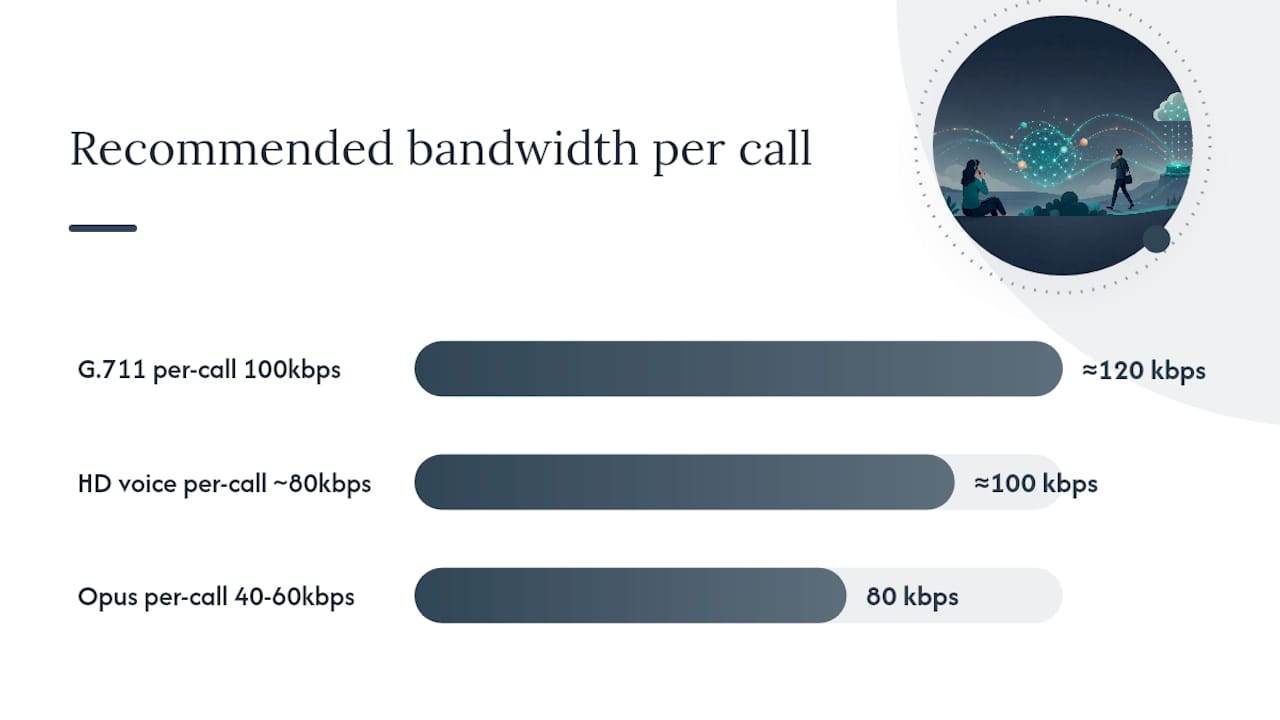
For a five-person remote team with two concurrent calls each, plan for at least 1.2 Mbps of dedicated upload bandwidth on G.711 codec, more if you're running video alongside voice.
Security items:
- Require MFA on every user account, not just admin accounts.
- Enable remote wipe for mobile app extensions.
- Enforce strong SIP passwords (16+ characters, not the extension number).
- For regulated conversations (healthcare, legal, financial), route calls over a VPN or confirm your provider's encryption meets your compliance standard.
Pro Tip: Use your provider's TURN relay service rather than opening SIP ports on every remote employee's home router. It's more consistent, easier to audit, and eliminates the "it worked yesterday" firewall problem.
How do you diagnose and fix common remote extension failures?
Test call flows end-to-end from an external number first, then isolate the problem to the network, device, or provider layer.
- One-way audio: Almost always a NAT or SIP ALG problem. Disable SIP ALG, confirm STUN/ICE/TURN is active, and check that the RTP port range is open. Use a packet capture (Wireshark or tcpdump) to confirm RTP is flowing in both directions.
- Choppy or robotic audio: Check jitter and packet loss with a VoIP speed test tool. If jitter exceeds 30 ms or packet loss exceeds 1%, enable QoS or switch to wired Ethernet. Cellular failover can help but adds latency.
- Registration failures: Verify SIP credentials in the device config, confirm the registrar address and port, and check that the firewall isn't blocking the registration port. Provider registration logs will show the exact SIP error code.
- Caller ID mismatches: Check the outbound trunk's CLID settings in the admin portal. Some carriers require a specific format (10-digit vs. E.164). Confirm with your SIP trunk provider.
When escalating to your provider, include: SIP trace logs with timestamps, the call ID from the admin portal, the affected extension number, and a description of the failure mode. Businessvoip handles escalation coordination for its installed customers, including direct carrier-level troubleshooting.
What does remote extension installation actually cost?
Self-provisioning lowers upfront cost but shifts all configuration, troubleshooting, and porting risk to your team. A fully installed Businessvoip subscription bundles on-site design, porting, programming, cabling, and a lifetime warranty on rented phones into a fixed monthly fee.
- Provider-assisted onboarding: Some providers offer paid onboarding packages. You still own the ongoing administration and any on-site network work.
- Fully installed and supported (Businessvoip): Fixed monthly pricing with no annual increases, lifetime warranty on rented phones, and a local Ontario team that designs, programs, cables, and installs on-site. Businessvoip has been operating since 2005 with carrier-grade infrastructure supporting multi-site and remote office deployments, including US and UK remote offices.
The real cost of self-provisioning isn't the monthly seat fee. It's the staff hours spent on a failed port, a misconfigured trunk, or a cutover that drops calls on the first morning. A supported install trades upfront simplicity for long-term reliability.
The step-by-step installation checklist makes clear how many moving parts a proper rollout involves: DID exports, analog dependency inventories, LOA timing, VLAN staging, and monitored cutovers. Each one is a potential failure point when handled without experience.
When a supported install is worth every dollar
Hire a supported installer when call continuity, E911 handling, or analog dependencies (alarms, fax lines, elevator phones) are part of the deployment. Those three factors alone account for the majority of costly cutover failures.
Multi-site porting is where DIY installs most often break down. Coordinating simultaneous ports across locations, maintaining temporary forwarding, and monitoring first-morning inbound calls across multiple trunks requires a war-room discipline that most IT teams haven't built. Complex analog integrations — a fax server, a door entry system, a monitored alarm panel — need physical hands on-site to test before the PSTN connection is cut.
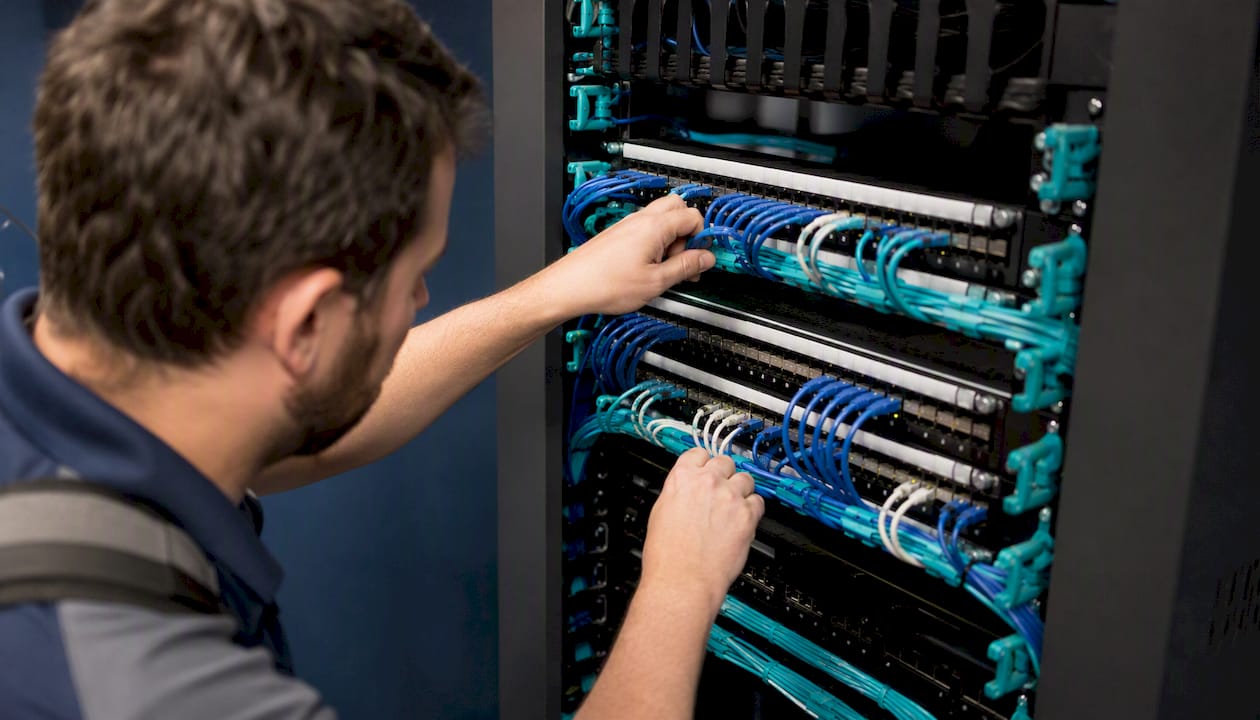
Businessvoip's local Ontario team designs, programs, and installs the system on-site, so the people who configured it are the same people who can fix it. That continuity matters when something goes wrong at 8 AM on a Monday.
Businessvoip installs your remote extensions on-site
Businessvoip delivers more than a login and a provisioning guide. The local Ontario team handles site surveys, network checks, system design, programming, cabling, on-site installation, staff training, number porting, E911 confirmation, and staged cutover coordination. Rented phones carry a lifetime warranty, and pricing is fixed with no annual increases.
For multi-site deployments or remote office integrations across the US and UK, Businessvoip's carrier-grade multi-site infrastructure handles the complexity. Service covers businesses within roughly 150 km of Ancaster, with larger projects supported province-wide. Ready to get every remote extension working from day one? Book a site survey and get a fixed-price quote.
Sources
- Remote extension configuration — FortiVoice cookbook
- How to Install a Business VoIP Phone System (Step-by-Step)
- Benefits of a Business VoIP Phone System (2026 Buyer Guide)