
Voicemail-to-email forwards each new voicemail to a designated inbox as an audio attachment, typically a .WAV or .AMR file, along with the caller's number, a timestamp, and often an automated text transcript. To enable it, log into your carrier or hosted VoIP portal, navigate to voicemail or notification settings, enter the destination email address, and save. That's the whole mechanism. Everything below covers what actually arrives, how to set it up step by step, carrier-specific paths for Bell MTS, Telus, and Vonage, and a short decision framework for businesses deciding between self-serve and a managed install like Businessvoip.
A typical forwarded voicemail email contains:
- Audio attachment: .WAV, .AMR, or .MP3 depending on the provider
- Caller ID and timestamp in the subject line or email body
- Optional transcript: automated text of the voicemail, accuracy varies by vendor
- Portal link: some providers include a link back to the voicemail inbox
To get started you need three things: your account login for the carrier or hosted VoIP portal, the email address you want voicemails sent to, and your voicemail PIN or password.
Key Takeaways
Voicemail-to-email delivers audio attachments and optional transcripts to your inbox, and getting it right means verifying the full path from provider to mailbox, not just flipping a toggle.
| Point | Details |
|---|---|
| What arrives in your inbox | Audio file (.WAV, .AMR, or .MP3), caller ID, timestamp, and an optional automated transcript. |
| Core setup steps | Log into your provider portal, enter the destination email, enable transcription if available, and send a test voicemail. |
| Top troubleshooting check | Look in spam first, then verify the forwarding address and confirm your mail server allows audio attachments from the provider's IP range. |
| Security baseline | Enable MFA on the receiving mailbox and treat forwarded voicemails as sensitive messages subject to your retention policy. |
| When to use Businessvoip | Multi-site deployments, compliance requirements, or no internal IT staff: Businessvoip installs and verifies the full system on-site. |
Table of Contents
- How does voicemail-to-email actually work?
- Step-by-step setup for most carriers and hosted VoIP systems
- Carrier-specific quick notes: Bell MTS, Telus, and Vonage
- Common delivery problems and how to fix them
- Privacy, security, and retention considerations
- When should a business hire a managed VoIP installer instead of self-serving?
- What installers actually see in the field
- Businessvoip handles voicemail-to-email as part of a complete install
- Sources
How does voicemail-to-email actually work?
When a caller leaves a voicemail, your provider's system records and stores the audio on its servers. From there, an automated process packages the recording as an email attachment and routes it to whatever address you configured. The email typically arrives within a minute or two of the voicemail being left, though delivery speed depends on your provider's infrastructure and your mail server's routing rules.
What lands in your inbox looks roughly like this: a subject line reading something like "New Voicemail from 416-555-0123 on March 4, 2026 at 2:14 PM," an audio file attached, and a short body that may include a machine-generated transcript. Microsoft Q&A confirms that in Microsoft Teams and Outlook environments, voicemail transcripts can be delivered alongside the audio attachment, with users reporting the transcript appearing directly in the email body.
Attachment format matters more than most people expect. Western Technology Services notes that voicemail-to-email commonly delivers audio in .WAV or .AMR formats, and if your email client or mobile device doesn't support the format natively, a third-party player like VLC will open it without issue. .AMR in particular trips up a lot of desktop clients, so knowing this in advance saves a frustrating support call.
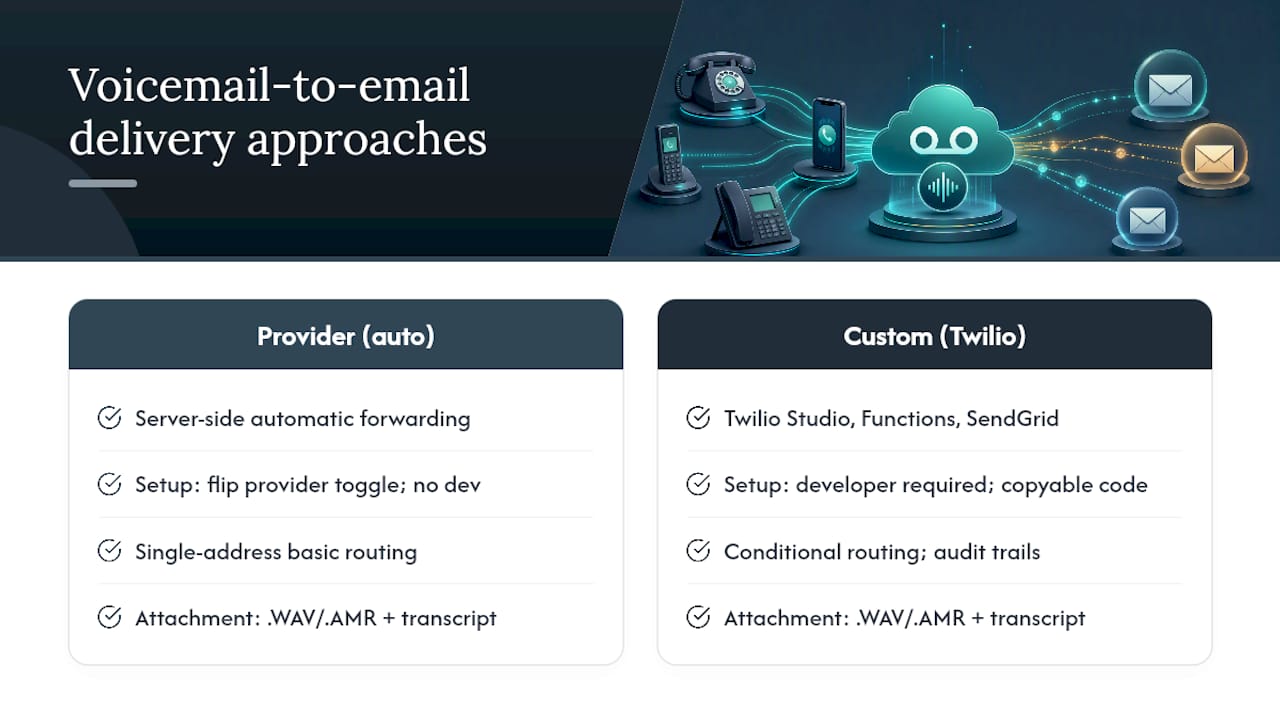
On the delivery side, there are two distinct approaches. Most carriers and hosted VoIP platforms handle forwarding server-side, meaning the provider does all the work automatically once you flip the toggle. For organizations that need custom routing, audit trails, or conditional delivery, Twilio documents a method using Twilio Studio, Functions, and SendGrid to forward voicemail recordings to email with copyable code and no external hosting required. That's the path for teams with a developer and a specific workflow requirement.
Transcription accuracy is worth a separate note. Automated transcripts are genuinely useful for scanning messages quickly, but they are not a verbatim record. Accents, background noise, and fast speech all degrade accuracy. Treat transcription as a convenience feature, not a compliance-proof document, unless your provider offers human-verified transcription.
Pro Tip: Send a 15-second test voicemail from a secondary number immediately after setup. Open the resulting email on both desktop and mobile to confirm the attachment plays and the transcript (if enabled) reads coherently. Catching a format incompatibility at this stage is far easier than troubleshooting it after a missed client message.
Step-by-step setup for most carriers and hosted VoIP systems
The steps below work across the majority of carrier portals and cloud PBX admin pages. The labels differ by provider, but the sequence is consistent.
Before you start, confirm you have:
- Admin or account-owner login credentials for your carrier or VoIP portal
- The exact email address you want voicemails forwarded to
- Your voicemail PIN or password
Setup steps:
- Log into your provider's account portal or hosted PBX admin interface.
- Navigate to Voicemail, Messaging, or Notifications settings, depending on what your provider calls it.
- Locate the voicemail-to-email or email notification toggle and switch it on.
- Enter the destination email address. Double-check spelling before saving.
- If your provider offers transcription, toggle it on or off based on your preference.
- Save the settings. Some portals require a confirmation email click to activate forwarding.
- Leave a test voicemail from a different number and wait two to three minutes.
- Check your inbox, including the spam or junk folder, and confirm the audio attachment plays.
Quick troubleshooting checks during setup:
- Email not arriving: check spam/junk first, then verify the address was saved correctly
- Attachment blocked: confirm your mail server's attachment policy allows .WAV or .AMR files
- Feature not visible: verify your plan includes voicemail-to-email (some carriers treat it as an add-on)
- Transcript missing: not all plans or tiers include transcription; check plan details
For cloud PBX systems, the voicemail-to-email toggle typically lives in the admin portal under user or extension settings, and an admin can configure it for individual users or apply it across a group. For a cloud-based business phone system, this is usually a standard included feature rather than an add-on.
Carrier-specific quick notes: Bell MTS, Telus, and Vonage
Each provider puts the voicemail-to-email toggle in a slightly different place. Here's where to look and what to expect from each.
Bell MTS
Bell MTS customers manage voicemail settings through MyBell, Bell's account portal. Once logged in, navigate to "My Services" and look for voicemail or messaging preferences. Bell's MyMessages platform is the typical entry point for enabling email forwarding on residential and small-business lines. If the toggle isn't visible in self-serve, Bell's Let's Talk support page connects you with an agent who can enable it on the account side. Bell MTS does not universally include transcription on all plans, so check your plan tier before expecting a text version of the voicemail.
Telus
Telus offers voicemail-to-email through its My Account portal for consumer lines and through the Telus Business Connect admin console for business accounts. The key difference: consumer accounts typically get audio-only forwarding, while Telus Business Connect plans may include voicemail-to-text as part of the package. Admin-level users on business accounts can configure forwarding per extension, which matters for teams where different staff members need separate destination addresses. If you're on a legacy Telus landline plan, the feature may require a call to business support to activate.
Vonage (and similar hosted VoIP providers)
Vonage Business Communications includes voicemail-to-email as a standard feature on business plans. Admins configure it through the Vonage Business portal under "Voicemail" settings at the extension or hunt group level. Vonage also offers voicemail transcription on most business tiers, delivered in the email body alongside the audio attachment. One detail worth knowing: Vonage sends audio as .MP3, which has broader compatibility than .AMR across most email clients and mobile devices. For business VoIP service generally, hosted providers like Vonage tend to make this feature more accessible than traditional carriers because the admin portal is purpose-built for it.
Across all providers:
- Confirm whether voicemail-to-email is included in your current plan or requires an upgrade
- Note the audio file format your provider sends (.WAV, .AMR, or .MP3) before troubleshooting playback
- For business accounts, distinguish between admin-level and user-level settings, since some changes require admin access
- Always check the provider's own support documentation for the exact current portal path, as UI layouts change
Common delivery problems and how to fix them
Most voicemail-to-email failures fall into a short list of causes. Work through this sequence before contacting support.
No email received:
- Check spam, junk, and quarantine folders first. Provider notification emails frequently trigger spam filters.
- Verify the forwarding address in your portal settings is spelled correctly.
- Log into the provider portal and check whether the voicemail was received at all. If it shows in the portal but no email arrived, the issue is on the delivery side.
- Test with a personal Gmail or Outlook address to rule out a corporate mail server blocking the message.
Attachment blocked or won't open:
- Your organization's email security policy may strip .WAV or .AMR attachments. Ask your IT administrator to whitelist the provider's sending domain or allow those file types.
- If the file arrives but won't play, download it and open it with VLC, which handles both .WAV and .AMR without additional codecs.
- Some providers allow you to change the delivery format in portal settings. Switching to .MP3 often resolves compatibility issues.
Wrong caller ID or missing information:
- Caller ID in the email subject depends on what the calling party's carrier passes through. Unknown or spoofed numbers will show as "Unknown" or a generic label.
- If timestamps are wrong, check the time zone setting in your provider portal.
Transcript missing or garbled:
- Confirm transcription is enabled on your plan and in your settings.
- Transcription accuracy degrades with background noise, accents, and voicemails under five seconds. This is a known limitation across all automated transcription systems, including Microsoft's Teams voicemail transcription.
Server-side issues:
- Some corporate mail servers reject messages from provider IP ranges. Your IT team can add the provider's sending IPs to the allowlist. For Microsoft 365 environments, transport rules may need adjustment to allow voicemail attachments through.
- Attachment size limits on the receiving mail server can silently drop long voicemails. Most providers cap voicemail length, but a three-minute recording as a .WAV file can exceed 3 MB.
Pro Tip: When contacting provider support about a missed voicemail email, have the exact date, time, and calling number ready. Providers can pull delivery logs by message ID, and that information cuts diagnosis time significantly.
Privacy, security, and retention considerations
Forwarding voicemails to email changes who can access them and for how long. A voicemail sitting in a provider's system is relatively contained. Once it's in an email inbox, it follows every rule that governs that mailbox.
Access and visibility:
- Anyone with access to the recipient mailbox can read and play the forwarded voicemail. Shared mailboxes, distribution lists, and delegated access all expand that circle.
- Email administrators and IT staff with mailbox access can typically view forwarded voicemails. Treat these messages the same way you'd treat a sensitive email.
- If voicemails contain personal information about clients or patients, consider whether email is the appropriate delivery channel for your compliance context.
Retention and storage:
- Forwarded voicemail emails are retained according to your mailbox provider's retention policy, which may be longer than your phone provider's voicemail retention window.
- Backups and archiving systems may capture voicemail attachments even after the email is deleted from the inbox.
- Organizations subject to retention requirements should document where voicemails are stored and who can access them.
Encryption and transport security:
- Email delivery uses TLS in transit for most major providers, so the message is encrypted between mail servers. Attachments at rest, however, depend entirely on whether the mailbox provider encrypts stored data.
- For sensitive content, consider an encrypted mailbox solution or a managed VoIP platform that supports secure delivery with documented retention controls.
Practical mitigations:
- Enable multi-factor authentication on any mailbox receiving voicemail forwards
- Limit forwarding to individual mailboxes rather than shared or group addresses where possible
- Apply shared mailbox access controls so only relevant staff can open voicemail emails
- Set a calendar reminder to purge old voicemail emails in line with your organization's retention policy
When should a business hire a managed VoIP installer instead of self-serving?
Self-serve setup works well for a single user or a small team with a straightforward forwarding need and low compliance risk. For most Ontario businesses with more than a handful of extensions, the calculus shifts quickly.
Signs you need a managed install:
- Multiple sites or remote offices that need consistent voicemail-to-email settings across all locations
- Shared mailboxes or hunt groups where voicemails need to reach a team rather than one person
- Compliance or retention requirements that demand documented delivery and storage controls
- A corporate mail environment (Microsoft 365, Google Workspace) where IT policies block attachments or require IP allowlisting
- No internal IT staff to coordinate between the phone provider and the mail administrator
What a managed installer actually does differently:
A provider like Businessvoip designs the voicemail routing as part of the full system, not as an afterthought. On-site provisioning means every extension is configured correctly from day one, the email integration is tested against your actual mail environment, and provider IP ranges are coordinated with your IT team to prevent spam-filter failures. For multi-site operations, that consistency across locations is genuinely hard to replicate through self-serve portal work.
Decision checklist:
- Deployment size: More than five extensions or two locations? Consider managed.
- Compliance requirements: Regulated data in voicemails (health, legal, financial)? Managed with documented controls.
- Internal IT capability: No dedicated IT staff? Managed removes the coordination burden.
- Uptime and SLA needs: Client-facing lines where missed voicemails have real consequences? Managed with SLA-backed support.
- Budget: Fixed monthly pricing with no annual increases (as Businessvoip offers) often compares favorably to the hidden cost of internal troubleshooting time.
When self-serve is the right call:
A solo operator or a two-person office using a consumer VoIP app with a single forwarding address has no reason to hire a managed installer. The portal steps above take fifteen minutes, and the troubleshooting checklist covers the common failures. The managed route earns its cost when the deployment has complexity the portal wasn't designed to handle.
What installers actually see in the field
The most common voicemail-to-email failure I encounter during installs isn't a portal misconfiguration. It's a corporate mail server silently dropping the provider's notification emails because the sending IP wasn't allowlisted, or because the mail security policy strips audio attachments before they reach the inbox. Users assume the feature isn't working. The feature is working fine; the email never made it past the front door.

The fix is straightforward once you know to look for it: pull the provider's sending IP ranges, hand them to the IT administrator, and add a transport rule in Microsoft 365 or Google Workspace to allow voicemail attachments from those sources. For legacy deployments, standardizing on .WAV rather than .AMR eliminates a second class of playback complaints entirely, since .WAV has near-universal client support.
The other thing worth saying plainly: automated transcription is genuinely useful, but businesses that rely on it for anything compliance-sensitive are taking a risk. The transcript is a convenience layer, not a record. If the voicemail matters enough to keep, keep the audio file.
Businessvoip handles voicemail-to-email as part of a complete install
The self-serve steps in this guide work. Where they fall short is in environments where the phone system, the mail server, and the network all need to cooperate, and no single person owns all three.
Businessvoip's Ontario team designs, programs, cables, and installs your VoIP system on-site, including voicemail-to-email configuration tested against your actual mail environment before the installer leaves the building. Provider IP ranges get coordinated with your IT team. Attachment formats get standardized. Every extension gets verified. For businesses with multi-site or remote office setups, that consistency across locations is built in from the start, not patched in later.
Fixed pricing means no annual increases. Rented phones carry a lifetime warranty. If voicemail delivery breaks six months from now, one call gets it resolved.
Design your phone system with Businessvoip to get a discovery call, a network check, and a fixed-price proposal for a fully installed system that works from day one.
Sources
The following official documentation and technical references support the setup steps, format notes, and admin guidance in this article.
- Transcript of Voicemail sent via Email - Microsoft Q&A
- Forwarding Voicemail or Other Recordings to Your Email - Twilio Help Center
- About Voicemail to Email - Western Technology Services